Track
Digital Designing
Duration
120 hours
Skill Level
Foundation
Language
English
About this Course
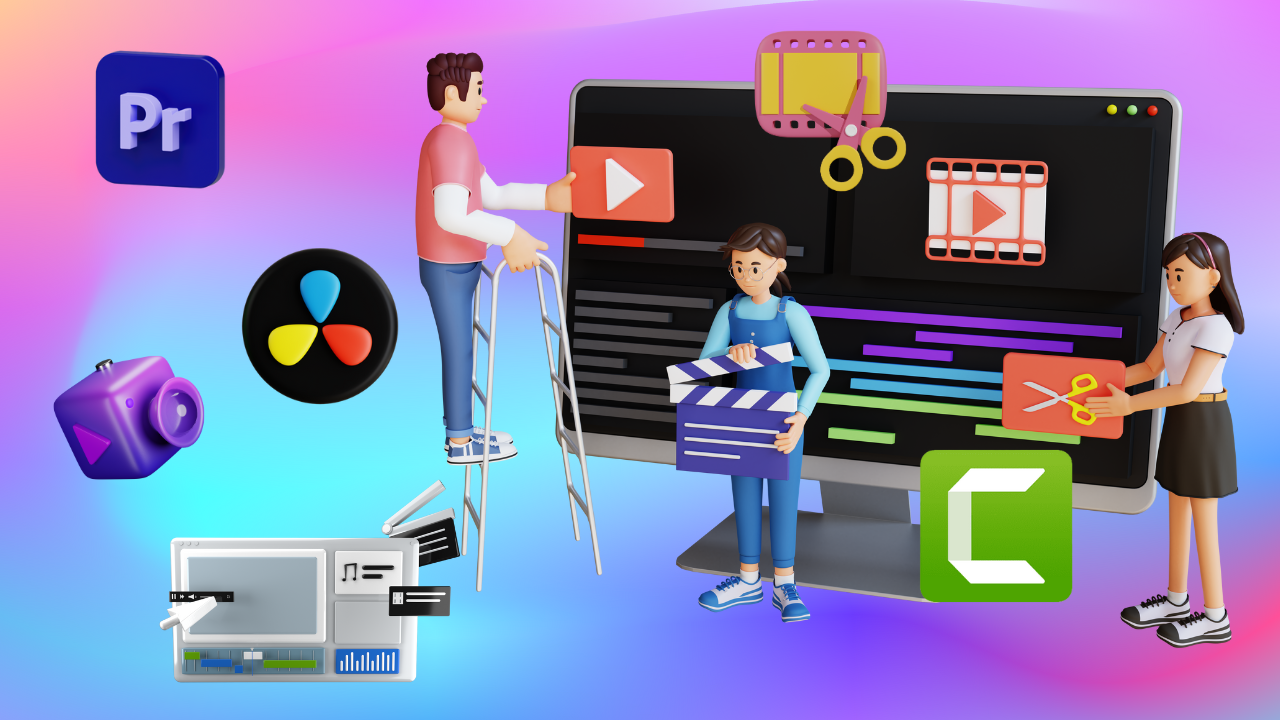
Video editing is a process of modifying or rearranging the segments of video from one or more video tapes to create a final piece of video. It also …
Learning Mode: Learn at ALC or at Home
Detailed Course Curriculum
Hands-on module breakdown aligned with MKCL production standards and industry requirements.
- Pawan’s journey to mastering Video Editing
- What is a video?
- Basic components of a video
- The evolution of video technology
- Impact of video on society
- How are the videos shot?
- Types of cameras used for video shooting
- Various video shooting modes in cameras
- Different video formats
- More about different video formats
- The art of capturing videos with a smartphone
- Overview of ‘Audio’ and its importance
- Content creation with stock footage and audio
- The role of storytelling in videography
- Modification of camera-shot videos
- Overview of Video Editing
- What is Video Editing?
- The purpose of video editing
- Where is video editing required?
- Basic video editing
- Introduction to Various Video Editing Tools
- How to adjust with Adobe Premiere Pro if you are new
- Uses of Premiere Pro
- Features of Video Editing Tool
- Installing Video Editing Tool
- How to create a new project in Video Editing Tool?
- How to import files in Video Editing Tool?
- What is the Sequence in Video Editing Tool?
- Customizing the Workspace in Video Editing Tool
- Overview of Career Opportunities in Video Editing
- Introduction to Diverse Career Paths
- Market Demand and Growth Potential
- Film Industry Opportunities
- Roles in Feature Films, Short Films, and Documentaries
- Path to Becoming a Film Editor
- Television and Broadcast Media
- Editing for TV Shows, News, and Live Events
- Career Progression in the Television Industry
- Opportunities in Digital Media and Online Content Creation
- YouTube, Social Media Platforms, and Independent Productions
- Skills Required for Online Media Editing
- Corporate and Commercial Video Editing
- Corporate Promotional Videos, Advertisements, and Training Videos
- Working with Marketing Teams and Agencies
- Freelancing and Independent Video Editing
- Building a Freelance Career
- Networking, Client Management, and Portfolio Development
- Creating your resume, portfolio, and online presence
- Creating a resume and portfolio
- Maintaining online presence
- Skills Required to Edit Videos
- Basic editing concept
- Insert Clips on the Timeline
- Everything About Timeline Navigation
- Selection and Track Selection Tools
- Clip Project Management
- Ripple Edit Tools
- Remix Tool
- Razor Tool
- Slip Tool & Slide Tool
- Working with Monitor Panels
- Creating Insert and Overlay Edits
- Editing in the Timeline
- Setting In and Out Points in the Timeline Panel
- Building a Narrative Through Editing
- About Video Transitions (Overview)
- Types of Video Transitions
- Applying transitions
- Adjusting Transitions
- Customizing Transitions
- Various Transitions Effects
- Hands-on: Applying Transitions
- Exploring the Video Effects
- Applying a Video Effect
- Using Video Effects with Key frames
- Superimposing Video Clip Using Keying Video Effect
- Applying effects using Image Matte Keying Effects
- Touring Video Effects
- Case Study 01 - Create a short video
- What is Audio?
- Various audio formats
- Recording audio during video shooting
- What are music tracks?
- Syncing audio or music tracks with video
- Timeline Audio Tracks
- Editing Audio
- Recording Audio
- Gaining, Fading and Balancing
- Using Audio Effects and Transitions
- Principles Behind Audio Mixing and Effects
- Audio Mixer Overview
- Setting Track Volume & Mixing Tracks
- Panning & Balancing
- Applying effects with Audio Mixer
- Significance of Audio in Video Editing
- Audio Techniques for Immersive Experiences
- Make your projects sound quirky
- Hands-on: Advanced Editing Exercise
- Introduction to Color Correction and Grading
- Impact on Visual Aesthetics
- Analyzing Color Choices
- Understanding video color
- Color Correcting Basics
- Start a Color Correcting Session
- Using the Video Scopes
- Color Enhancement Effects
- Special color and luminance adjustments
- Retouch Using Photoshop and After Effects
- Mattes, Transparency and Opacity
- Create transparency, solid colors with keys mattes
- Matte other than the alpha channel
- Using more mattes
- Introduction to creating Motion Effects
- Motion effect controls in Effect Controls Panel
- Working with the Motion Controls
- Setting Keyframes to create motion Effects
- Using timeline Panel to Preview & add Keyframes
- Editing Motion Paths
- Adding Effects to Motion Paths
- Using a clip with an Alpha Channel
- Creating Traveling Mattes
- Comparing camcorder formats
- Understanding video codecs
- Understanding Codecs and Formats
- Comparing Quality and Compatibility
- Hands-on: Exporting Videos
- Making Export Decisions
- Introduction to Keyframes and Animation
- Implementing Keyframes for Dynamic Visuals
- Hands-on: Animating Elements
- Evaluating Animated Videos
- Exploring Different Video Genres
- Adapting Editing Styles
- Hands-on: Genre-Specific Editing
- Assessing Alignment with Genre
- Efficiency and Workflow Optimization
- Strategies for Effective Time Management
- Edit videos faster even if they are longer
- Hands-on: Meeting Deadlines
- Evaluating Time Management Practices
- Case Study 02- Creating a short film
- Common Video Editing Challenges
- Creative Problem-Solving Techniques
- Hands-on: Troubleshooting Issues
- Reflecting on Problem-Solving Strategies
- Introduction to Creative Elements in Video Editing
- Importance of creative elements in video editing
- The role of graphics in video editing
- The importance of titles in videos
- Designing captivating titles for videos
- Color Theory in titles
- Animation and motion in titles
- Mastering Lower Thirds in video editing
- Case Studies: Analyzing Lower Thirds in popular videos
- History of film editing
- Understanding the Role of an Editor
- The Power of visual Storytelling
- Building a Story Arc
- Pacing and Rhythm in Editing
- Genre-Specific Editing Techniques
- Differences in Editing Documentaries, Dramas, and Comedies
- Importing and Organizing Media / camera Log / Data transfer
- Working with Audio and Sound Design
- Peer Review and Critique
- Copyrights and Fair Use in Editing
- Using the Title
- Creating titles from templates
- Modifying a title
- Creating titles from scratch
- Superimposing a title
- Creating a title roll or crawl
- Designing Visually Appealing Graphics, and Lower Thirds
- Significance of Well-Designed Elements
- Hands-On: Animation Techniques for Graphics and Titles
- Case study - Create cinematic text in Adobe Premiere Pro
- Creating text animations manually
- Adding cinematic text on video
- Using Track Mattes
- Creating Masking text
- Outcome
- Interface and project setting
- Editing line-up
- Text composition
- Basic - Transitions and Masking
- Text base editing and transcribe
- Sound effects (SFX)
- Case study and review
- Creating shapes and nest
- Shape animation / temporal interpolation
- Track matte key / Text animation
- Kinetic text animation
- Motion graphics - Spatial interpolation
- Motion graphics - Icons and assets
- Case Study and review
- Overview and coloring effects
- Analyzing clip for color correction
- Color scheme
- Color theory
- Color replacement
- Video limiter
- Filters and presents
- Case Study and Review
- Lumetri color space
- Lumetri color - Color control
- Lumetri color- HSL
- Lumetri color advance color grading
- Case study and review
- Overview
- Motion tracking manual
- Picture in Picture
- Changing skin tone
- Case study and review
- Compositing - overview
- Compositing ultra-key
- Screen replacement - Nest
- Screen replacement - Corner pin
- Advance compositing
- Advanced green screen techniques
- Compositing - Case study and review
- Time remapping overview
- Tools for time remapping
- Image sequence for time lapse
- Nesting sequence for timeless
- Time adjustment with curves
- Time Interpolation
- Case Study and Review
- Blend mode overview and subtractive blend
- Additive blend modes
- Complex, Difference and HSL
- Blend mode as effects
- Transitions overview
- Blend mode and Transition
- Lens Flare & Light leak
- Creating Captivating Video Montages
- Importance of Cohesive Blending
- Assessing the Effectiveness of Montages
- Naming convention
- Managing media in bins
- Importing projects or sequences
- Folder arrangements
- Rendering
- HDR/SDR
- Codec & Format
- Making a clip offline
- Format Extensions
- Meta Data
- Collecting files and copying them to a new location
- Program Monitor Button Editor
- Uses of Camtasia
- Features of Camtasia
- Installing Camtasia
- How to create a new project in Camtasia?
- How to import files in Camtasia?
- Case Study - Create a motion banner in Camtasia
- Effective File Organization
- Asset Management
- Practical Exercise on File Organization
- Introduction to Collaborative Software
- Importance of Collaboration Tools
- Collaborate with your friends or colleagues for video editing projects
- Screen Recording with Camtasia
- Advanced Editing Techniques in Camtasia
- Introduction to Version Control
- Significance of Version Control
- Hands-on Exercise on Version Control
- Reflection and Discussion
- Introduction to DaVinci Resolve
- Advantages of DaVinci Resolve
- Setting up DaVinci Resolve
- Launching DaVinci Resolve
- Understanding DaVinci Resolve
- DaVinci Resolve Settings
- Project Settings
- Introduction to Media Page
- Manage Workspace
- Importing Media
- Organizing media
- Introduction to Metadata
- Using Smart Bins in DaVinci Resolve
- Case Study - Getting started with DaVinci Resolve
- Introduction - CUT Tab
- Preview your clips within the CUT Page
- The Source Tape Preview
- Create your 1st rough CUT in the CUT Page
- Cut Page Timeline
- Timeline vs Source - Trimming
- How to use the Smart Insert?
- Introducing to the Inspector Tool
- How to add Transitions in the Cut Page
- Basic audio editing techniques
- Multiple timelines in one project
- Adding titles and text animation
- Introduction to the Edit Page
- Match Frame Find timeline Clips in Media Pool
- How to Create a New Timeline
- How to Trim and add Clips to your Timeline
- The Blade Edit
- Ripple Cut Edit
- How to Navigate the Timeline
- How to Swap Clips on the Timeline
- Timeline Zooms and Previews
- How to Customize Transitions
- How to add Titles
- Performing a Lift & Insert
- Selecting and Moving Contiguous Clips
- How to Add, Move, and Remove Tracks
- Advanced timeline features: markers, subclips, nested timelines
- Keyboard shortcuts
- Audio mixing & effects
- Advanced effects: Smart reframe, super scale, camera tracker, scene detection, non-linear editing
- Color grading theory
- Primary and secondary color correction
- Creative color grading
- Green screen keying
- Integrating green screen footage
- Fusion introduction
- Text tools and animation
- Shape tools and effects
- Particle systems and simulations
- Compositing and keying in Fusion
- Fusion effects and transitions
- Case Study - Color Grading in DaVinci Resolve a. Using color sequence node with RGB b. Color Balance in DaVinci Resolve c. Video stabilization in DaVinci Resolve d. Outcome
- Case Study - Using Green Screen in DaVinci Resolve a. Easy Green Screen Removal b. Color grading green screen footage c. Outcome
- Case Study - Creating Motion Graphics and Animated Text Layers
- Copyright and Intellectual Property Rights
- Obtaining Permissions for Content
- Discussing Real-world Ethical Scenarios
- Encouraging Ethical Practices
- Case Study - Creating Motion Graphics and Animated Text Layers
- Adding Fusion Composition and Nodes
- Shape animation in DaVinci Resolve
- Using the Spline Editor in DaVinci Resolve
- Compositing and exporting the video
- Understanding Video Optimization
- Role in Enhancing Viewing Experience
- Practical Optimization Techniques
- Reflection on Optimization Impact
- Introduction to Codecs and Formats
- Balancing Quality and File Size
- Choosing Optimal Codecs
- Reflection on Choices Made
- Creating Custom Thumbnails
- Importance of Metadata
- Thumbnail and Metadata Exercise
- Reflection on Discoverability
- Introduction to Video SEO
- Keywords and Descriptions
- Application of Video SEO
- Reflection on SEO Efforts
- Social Media Platforms for Video
- Audience Engagement and Analytics
- Social Media Exercise
- Reflection on Social Media Impact
- Monetization Options
- Copyright and Licensing
- Implementing Monetization
- Reflection on Monetization Strategies
- Introduction to Content ID
- Role in Copyright Management
- Dealing with Copyright Claims
- Reflection on Fair Use
- Building an Online Presence
- Consistency Across Platforms
- Branding Exercise
- Reflection on Branding Impact
- Video Editing Careers
- Exploring Diverse Paths
- Career Consideration Exercise
- Reflection on Career Choices
- Importance of a Portfolio
- Showcasing Strengths and Style
- Portfolio Curation Exercise
- Reflection on Portfolio Effectiveness
- Importance of Networking
- Seeking Collaborations
- Networking Exercise
- Reflection on Networking Impact
- Role of Continuous Learning
- Skill Enhancement and Trends
- Learning Opportunities Exercise
- Reflection on Learning Impact
Eligibility Criteria
• Basic knowledge of computers and keen desire to build skills in this field.
• Open to students, job seekers, and working professionals.
• Open to students, job seekers, and working professionals.
Official Certification
• Official MKCL KLiC Certificate upon successful completion of the course and evaluations.
Target Audience & Who Should Join
• Aspiring Video Editors: Individuals aiming to build a career in video editing across various media platforms.
• Students and Graduates in Media and Communication: Those pursuing studies in film, media, journalism, or related fields, seeking practical video editing skills
• Content Creators and Social Media Influencers: Individuals looking to enhance the quality of their video content for platforms like YouTube, Instagram, and TikTok
• Marketing and Advertising Professionals: Professionals responsible for creating promotional videos and advertisements.
• Educators and Trainers: Teachers and trainers interested in producing educational videos and e-learning materials.
• Freelancers and Entrepreneurs: Individuals offering video editing services or aiming to produce videos for their businesses.
• Hobbyists and Film Enthusiasts: Individuals passionate about filmmaking and video editing as a creative outlet.
• Students and Graduates in Media and Communication: Those pursuing studies in film, media, journalism, or related fields, seeking practical video editing skills
• Content Creators and Social Media Influencers: Individuals looking to enhance the quality of their video content for platforms like YouTube, Instagram, and TikTok
• Marketing and Advertising Professionals: Professionals responsible for creating promotional videos and advertisements.
• Educators and Trainers: Teachers and trainers interested in producing educational videos and e-learning materials.
• Freelancers and Entrepreneurs: Individuals offering video editing services or aiming to produce videos for their businesses.
• Hobbyists and Film Enthusiasts: Individuals passionate about filmmaking and video editing as a creative outlet.
Work-Centric Learning Approach
• Step 1: Learners are given an overview of the course and its connection to life and work
• Step 2: Learners are exposed to the specific tool(s) used in the course through the various real-life applications of the tool(s).
• Step 3: Learners are acquainted with the careers and the hierarchy of roles they can perform at workplaces after attaining increasing levels of mastery over the tool(s).
• Step 4: Learners are acquainted with the architecture of the tool or tool map so as to appreciate various parts of the tool, their functions, utility and inter-relations.
• Step 5: Learners are exposed to simple application development methodology by using the tool at the beginner’s level.
• Step 6: Learners perform the differential skills related to the use of the tool to improve the given ready-made industry-standard outputs.
• Step 7: Learners are engaged in appreciation of real-life case studies developed by the experts.
• Step 8: Learners are encouraged to proceed from appreciation to imitation of the experts.
• Step 9: After the imitation experience, they are required to improve the expert’s outputs so that they proceed from mere imitation to emulation.
• Step 10: Emulation is taken a level further from working with differential skills towards the visualization and creation of a complete output according to the requirements provided. (Long Assignments)
• Step 11: Understanding the requirements, communicating one’s own thoughts and presenting are important skills required in facing an interview for securing a work order/job. For instilling these skills, learners are presented with various subject-specific technical as well as HR-oriented questions and encouraged to answer them.
• Step 12: Finally, they develop the integral skills involving optimal methods and best practices to produce useful outputs right from scratch, publish them in their ePortfolio and thereby proceed from emulation to self-expression, from self-expression to self-confidence and from self-confidence to self-reliance and self-esteem!
• Step 2: Learners are exposed to the specific tool(s) used in the course through the various real-life applications of the tool(s).
• Step 3: Learners are acquainted with the careers and the hierarchy of roles they can perform at workplaces after attaining increasing levels of mastery over the tool(s).
• Step 4: Learners are acquainted with the architecture of the tool or tool map so as to appreciate various parts of the tool, their functions, utility and inter-relations.
• Step 5: Learners are exposed to simple application development methodology by using the tool at the beginner’s level.
• Step 6: Learners perform the differential skills related to the use of the tool to improve the given ready-made industry-standard outputs.
• Step 7: Learners are engaged in appreciation of real-life case studies developed by the experts.
• Step 8: Learners are encouraged to proceed from appreciation to imitation of the experts.
• Step 9: After the imitation experience, they are required to improve the expert’s outputs so that they proceed from mere imitation to emulation.
• Step 10: Emulation is taken a level further from working with differential skills towards the visualization and creation of a complete output according to the requirements provided. (Long Assignments)
• Step 11: Understanding the requirements, communicating one’s own thoughts and presenting are important skills required in facing an interview for securing a work order/job. For instilling these skills, learners are presented with various subject-specific technical as well as HR-oriented questions and encouraged to answer them.
• Step 12: Finally, they develop the integral skills involving optimal methods and best practices to produce useful outputs right from scratch, publish them in their ePortfolio and thereby proceed from emulation to self-expression, from self-expression to self-confidence and from self-confidence to self-reliance and self-esteem!
Ready to start Video Editing?
Join our upcoming batch at ZICA Kalyani center with certified instructors.
Other MKCL Courses
-
Introduction to 3D Animation
30 hours -
DTP (Adobe & CorelDRAW)
120 hours -
Graphic Designing
120 hours -
Video Editing Techniques
30 hours